|
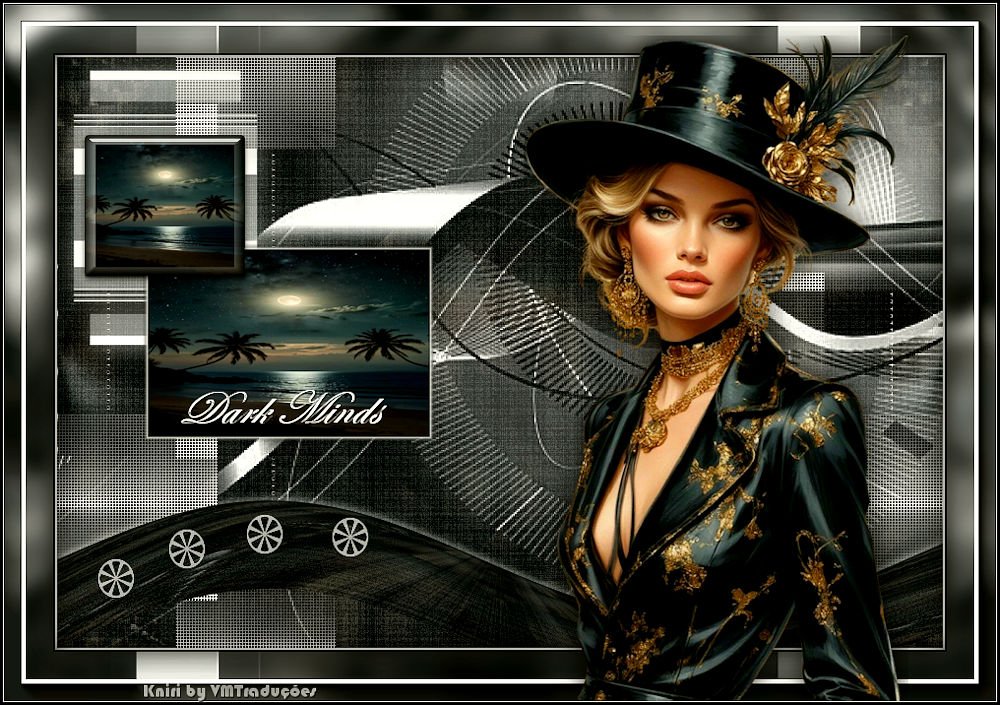
This tutorial is from Kniri who I thank for
letting me translate their tutorials.

Original here

Tubes

Material

My images: Here
Plugins
Eye Candy 5: Impact - AAA Frames -
AAA Filters
You can find these plugins on the websites of:
Renée
Cloclo
You can also find this tutorial translated into these languages:
(Click on the flag)


|
Notes:
> Open the material / Duplicate (shift+d) / Close the originals
> Change the blend mode of the layers to match their colors.
> In older versions of PSP, Mirror Horizontal=Mirror / Mirror Vertical=Flip /
Pick tool=deformation
> Open the masks in psp and
minimize
>Adjust the size of the tubes according to your images
|
SCRIPT
Images:
1 female tube
1 landscape tube
*
1. Open the alpha channel [alphak]
/ Duplicate (shift+d) / Close the original
Selections / Select all
Copy the image [bgkniri]
Paste it into the selection
Select none
2. Add a new layer
Paint it white
Layers / New Mask layer / From Image / Mask [mask60]
Layers / Duplicate
Merge group
3. Selections / Load selection from alpha channel / Selection 1
Press Delete
Select none
4. Add a new layer
Paint it white
Layers / New mask layer / From Image / Mask [Narah-Mask_1277]
Merge group
5. Image / Resize: 35% - all layers unchecked
Image / Free Rotate - Left/90
6. Activate the Pick tool and configure: X=14 - Y=11 - Press M
Drop shadow: 0 0 80 40 white
7.Activate the Raster 1 layer
Selections / Load selection from alpha channel / Selection 2
Selections /Promote selection to layer
Adjust/blur/Gaussian Blur: 10
8.Add new layer
Copy your landscape
Paste into selection
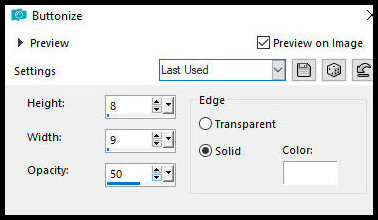
Effects / 3D Effects / Buttonize
9.Effects/3D Effects/Chisel
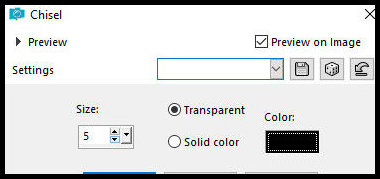
Select none
Merge down
Layers / Arrange / Bring to top
10.Effects / Plugins / Eye Candy 5: Impact / Glass - preset [clear]
11.Activate the Raster 1 layer
Selections / Load selection from alpha channel / Selection 3
Selections / Promote selection to layer
Layers / Arrange / Bring to top
Adjust/Blur/Gaussian Blur: 10
12.Copy your misted landscape
Paste on selection
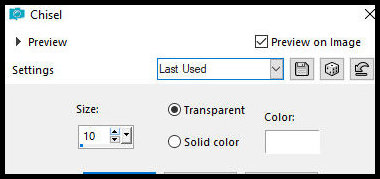
Effects / 3D Effects / Chisel
Select none
13.Image/Resize: 1x60% and 1x80% - all layers unchecked
Activate the Pick Tool and configure: X=87 - Y=190 - Press M
Layers / Arrange / Move Down
14.Activate the Raster 1 layer
Selections / Load selection from alpha channel / Selection 4
Selections / promote selecton to layer
Select none
15.Effects / Plugins / Mura's Meister / perspective Tiling - height:
15
Drop Shadow: 0 0 80 15 white
Layers / Arrange / Move up
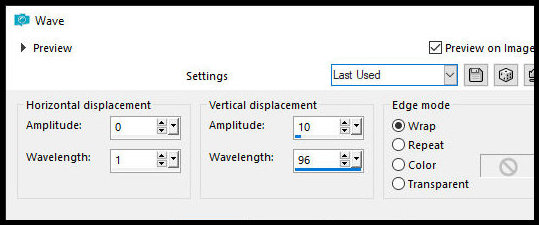
Effects / Distortion Effects / Wave
16.Selections / Load selection from alpha channel / Selection 5
Press Delete
Select none
17.Activate Layer Raster 1
Add new layer
Paint with color White
Layers / New Mask Layer / From Disk / Mask [Narah-Mask-1123]
Layers / Duplicate
Merge group
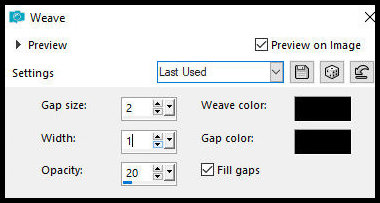
18. Effects / Texture Effects / Weave - black color
Drop Shadow: 0 0 80 15 black
19. Image / Add borders / 2px / white
Image / Add borders / 2px / straight
Copy (will be in memory)
Selections / Select all
Image / Add borders / 50px / white
20. Selections / Invert
Paste the image from memory into the selection
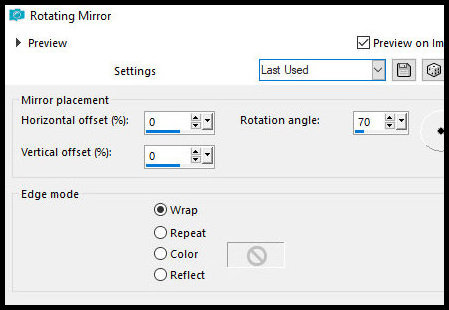
Effects / Reflection Effects / Rotating Mirror
21. Adjust / Blur / Gaussian Blur: 10
Selections / Promote selection to layer
22. Add new layer
Paint with white color
Layers / New Mask Layer / From Image / Mask [huzunluyillar-198]
Layers / Duplicate
Merge group
23. Effects / Plugins / AAA Filters / AAA Framer
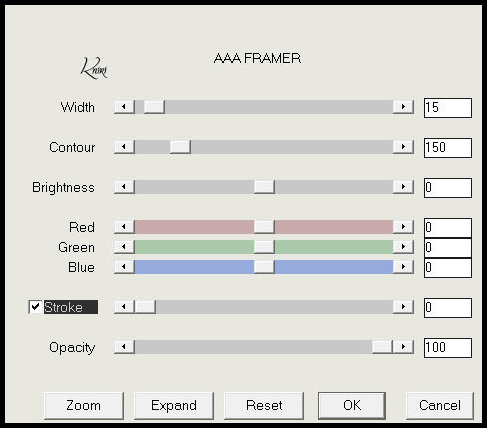
Merge visible
Effects / Plugins / AAA Frames / Photo Frame
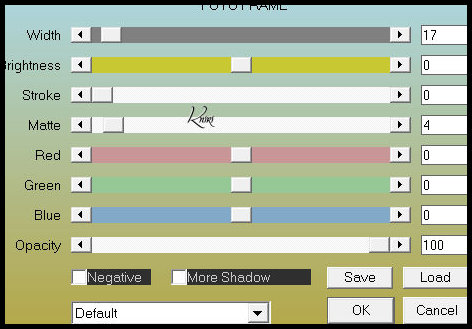
24. Drop shadow: 0 0 80 40 black
Selections / Invert
Drop Shadow: 0 0 80 40 black
Select none
25. Copy your main tube
Paste as a new layer
Adjust the size
Position according to the model
Drop Shadow of your choice
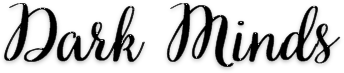
26. Copy the text
Paste as a new layer
Position according to the model
27. Copy the tube [deko]
Paste as a new layer
Position according to the model
28. Image / Add borders / 1px / white
Image / Add borders / 3px / black
Image / Resize: 900px (width)
Adjust / Sharpness / Unsharp mask [2 30 2 [Unchecked]
29. Add signatures
Merge all
Save as jpeg

|