You can also find this tutorial translated into these languages:
(Click on the flag)
SCRIPT
Notes:
> Open the material / Duplicate (shift+d) / Close the originals
> Change the blend mode of the layers to match their colors.
> In older versions of PSP, Mirror Horizontal=Mirror / Mirror Vertical=Flip /
Pick tool=deformation
> Open the masks in psp and
minimize
>Adjust the size of the tubes according to your images
*
You will need:
1 female tube
1 image for the background
*
1. Original colors: foreground: light color -
background: dark color
2. Open the background image [HGB] / Duplicate (shift+D)
/ Close the original
3. Effects / Texture Effects / Weave - color: background
4. Add a new layer
5. Paint with the foreground color
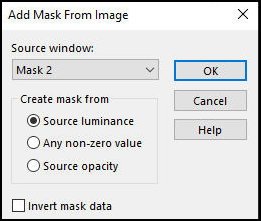
6. Layers / New Mask layer / From image / Mask [Mask 2]
7. Merge Group
8. Effects / User Defined Filter / Emboss 3
9. Effects / Edge Effects / Enhance
10. Layers / Duplicate
11. Image / Free Rotate / left 90
12. Layers / Duplicate
13. Image / Free Rotate / right 45
14. Layers / Duplicate
15. Image / Mirror / Mirror Vertical
16. Merge Down - Apply 3 times
17. Drop shadow: 0 0 60 25 black
18. Copy [deco1]
19. Paste as a new layer
20. Adjust the size (according to your images)
21. Copy the tube [deco2]
22. Paste as a new layer
23. Copy the tube misted background
24. Paste as a new layer
25. Move to the circle as per the template
25b. Adjust the size
26. Copy the tube [deco3]
27. Paste as a new layer
28. Move to the left as per the model
29. Copy the tube [deco4]
30. Paste as a new layer
31. Move to the upper left corner as per the model
32. Merge visible
33. Copy the female tube
34. Paste as a new layer
35. Adjust the size
36. Position as per the model
37. Drop Shadow of your choice
38. Copy the text
39. Paste as a new layer
40. Move the text to the right as per the model
40b. Adjust the text position so that the flowers fit
well.
41. Border: 2px / background color
42. Selections / Select all
43. 25px / foreground color
44. Drop Shadow: 0 0 80 40 black
45. Border: 5px / background color
46. Selections / Modify / Contract: 6
47. Drop Shadow: 0 0 80 40 black
48. Selections / Modify / Contract: 6
49. Drop Shadow as before
50. Select none
51. Effects / Plugins / AAA Frames / Foto Frame
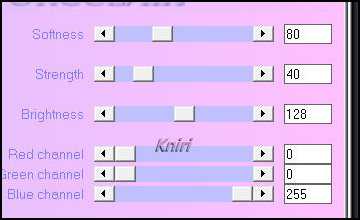
52. Effects / Plugins / Xero / Porcelain
53. Merge visible
54. Image / Resize: 900px (width)
55. Adjust / Sharpness / Unsharpen Mask
56. Place signatures
57. Merge all
58. Save as jpg