|
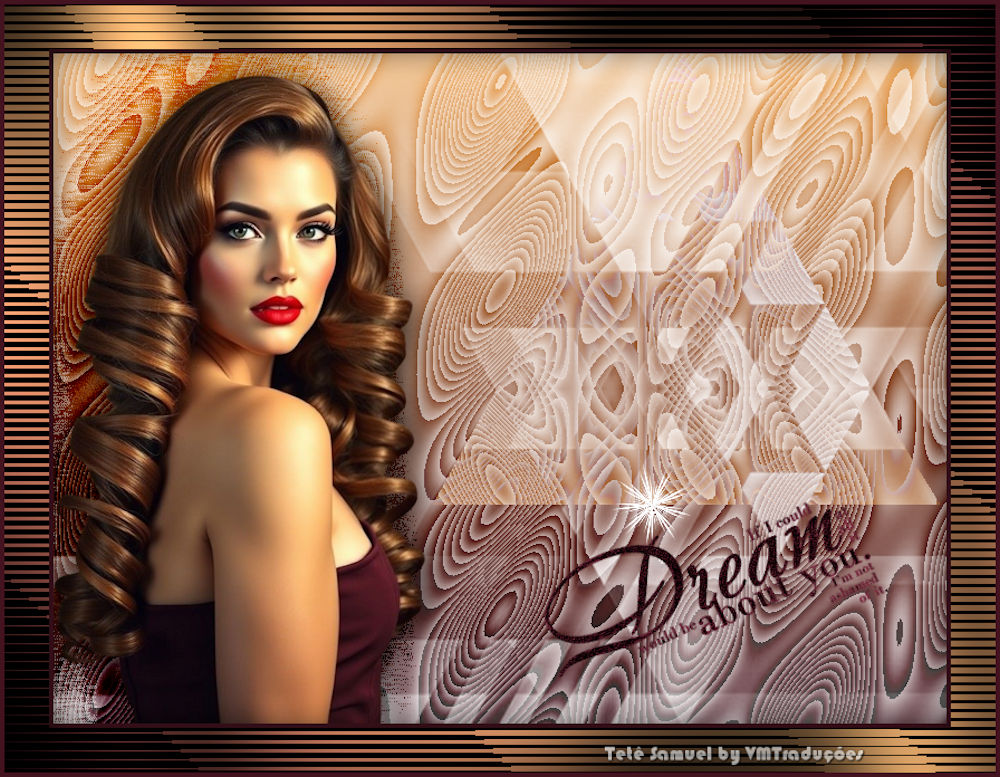

This tutorial is from Tetê Samuel who I thank for
letting me translate their tutorials.

Original here

Tubes

Material

My images:
Here
Plugins
Tramages
You can find these plugins on the websites of:
Renée
Cloclo
You can also find this tutorial translated into these languages:
(Click on the flag)


|
Notes:
> Open the material / Duplicate (shift+d) / Close the originals
> Change the blend mode of the layers to match their colors.
> In older versions of PSP, Mirror Horizontal=Mirror / Mirror Vertical=Flip /
Pick tool=deformation
> Open the masks in psp and
minimize
>Adjust the size of the tubes according to your images
|
SCRIPT
Images:
1 female tube
1 wordart
*
Save the selection in the PSP
Selections folder
*
Note: If you use very similar
colors in a tone-on-tone style, this may cause a slight difference
in the border effect
*
zChoose two colors from your tube
and place a dark color in the foreground and a light color on the
border
Prepare a Linear gradient: Angle:0 / Repeat: 0 / Invert unchecked
Open a new transparent image with 800x600px
Paint with the gradient
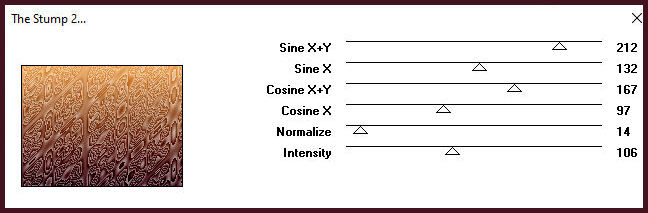
Effects / Plugins / Textures / The Stump 2
Add a new layer
Paint with the color white
Layers / New Mask Layer / From Image / Mask [OBG_MASK_203]
Merge group
Merge Down
Selections / Load selection from disk / Selection [sel-tete-anotherdream]
Selections / Promote selection to layer
Select None
Layers / Duplicate
Image / Mirror / Mirror Vertical
Blend mode: Lighten
Merge visible
Copy your main tube
Paste as a new layer
Adjust the size
Position to the left of the tag as per the model
Layers / Duplicate
Activate the Raster 1 layer (middle layer, with the original tube)
Image / Resize: 110% - all layers unchecked
Effects / Plugins / Tramages / Wee Scratches [255]
Blend mode: Burn / Opacity: +/- 60%
Activate the top layer (copy of the tube)
Soft drop shadow of your choice
Merge Visible
Copy your wordart
Paste as a new layer
Position as desired
Activate the background layer - Merged
Effects / Plugins / Tramages / Starmaker - the values in the
center x and center y fields refer to
the position of the star next to
the text. You must set the values according to your text.
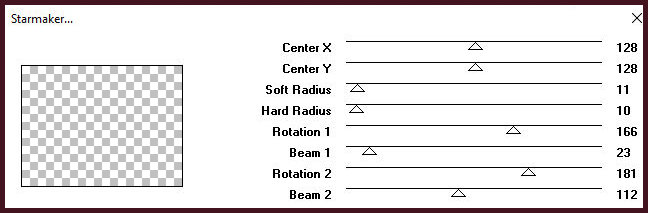
Image / Add borders / 4px /
foreground color
Image / Add borders / 40px / white
Select this 40px border with the Magic Wand (tolerance/feather=0)
Add new layer
Prepare a Linear gradient: Angle: 45 / Repeat: 1 - invert unchecked
- starting colors
Paint the layer with this gradient
Effects / Plugins / Tramages / TeeWee [246 112]
Effects / Plugins / Tramages / Pool Shadow - default
Drop shadow: 0 0 60 40 black
Select none
Image / Add borders / 4px / foreground color
Add the signatures
Merge all
Save as jpeg

|