|
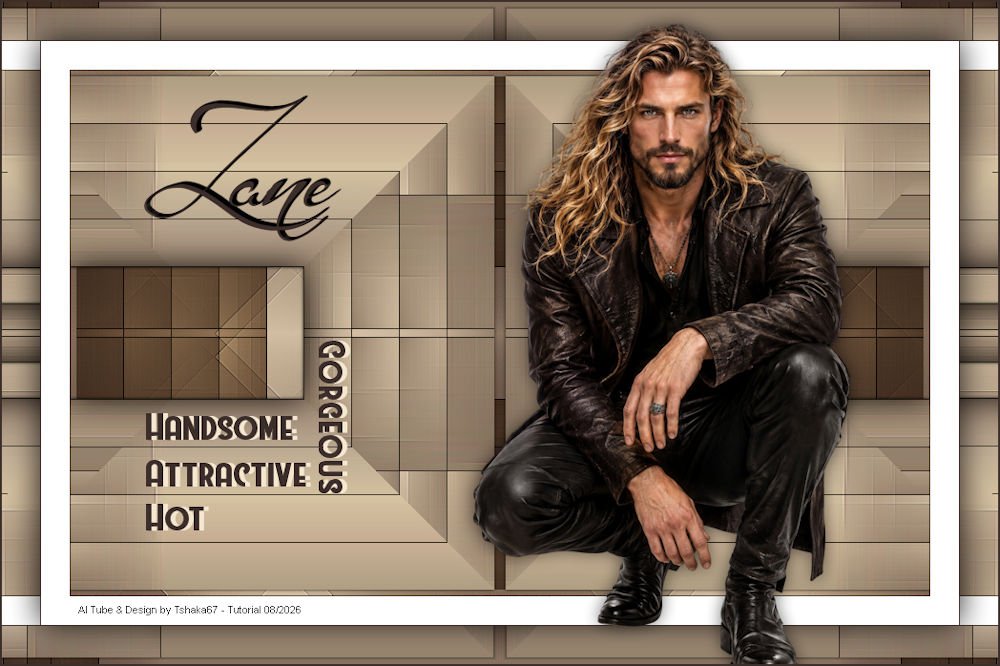
(Imagem Original de Tshaka)
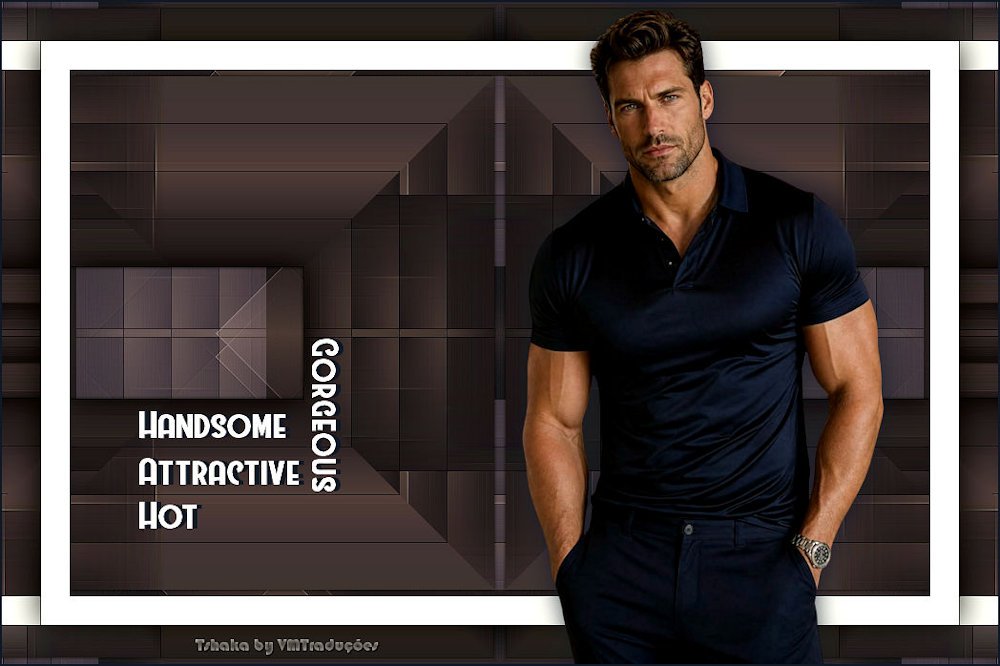
(minha versão)

This tutorial is from Tshaka who I thank for
letting me translate their tutorials.

Original here

Tubes

Material

Plugins
FF Gallery D - Mehdi - Scribe -
Toadies - Simple
You can find these plugins on the websites of:
Renée
Cloclo
You can also find this tutorial translated into these languages:
(Click on the flag)


|
Notes:
> Open the material / Duplicate (shift+d) / Close the originals
> Change the blend mode of the layers to match their colors.
> In older versions of PSP, Mirror Horizontal=Mirror / Mirror Vertical=Flip /
Pick tool=deformation
> Open the masks in psp and
minimize
>Adjust the size of the tubes according to your images
|
SCRIPT
Materials used:
1 male tube
1 text element
1 gradient (save to the PSP Gradients folder)
1 selection (save to the PSP Selections folder)
***
1
Colors
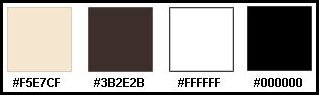
Open your tube and the text [Text_Tsha] in PSP
Choose a light color (#f5e7cf) for the foreground and a dark color
(#3b2e2b)
for the background
2
Click on the foreground -
Choose the Gradient option -
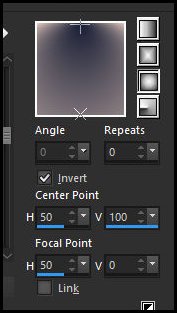
Locate the gradient [Zane] and
configure it as shown in the screenshot
3
Open a new transparent image, 900x550px
Fill it with the gradient
4
Effects - Plugins - Unlimited 2 - FF Gallery D - Mirror It - default
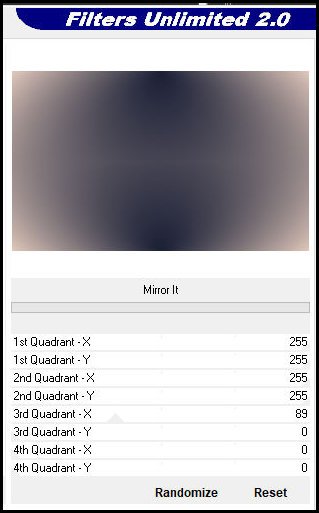
5
Layers - Duplicate
Effects - Plugins - Mehdi - Sorting Tiles
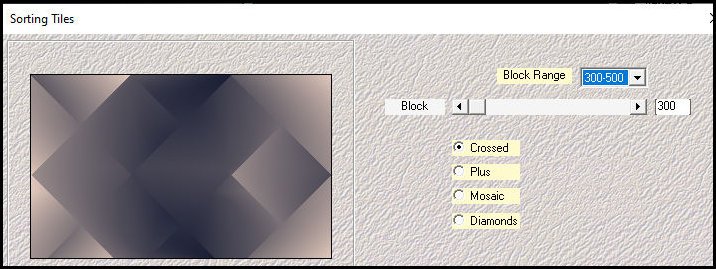
6
Effects - Image Effects - Seamless Tiling
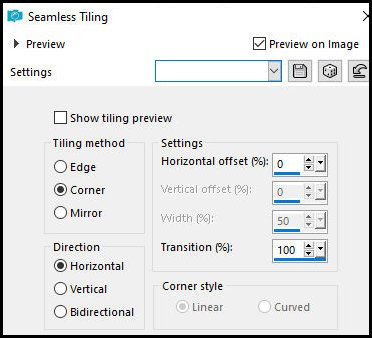
7
Effects - Edge Effects - Enhance More
Blend Mode: Multiply
Merge visible
8
Layers - Duplicate
Effects - Plugins - Unlimited 2 - Scribe - 4 Way Mirror - Default (both
controls = 128)
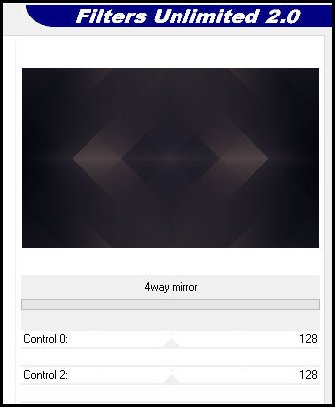
9
Blend mode: Lighten
Merge visible
10
Selections - Load selection - From disk - Selection [Zane-Tsha]
Selections - Promote selection to layer
11
Effects - Plugins - Toadies - Weaver
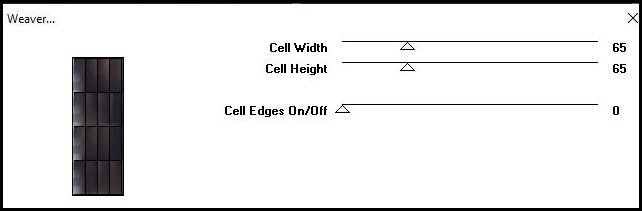
Select none
12
Effects - Image Effects - Offset [105/0]
13
Layers - Duplicate
Image - Mirror - Mirror Horizontal
Merge Down
14
Effects - Plugins - Simple - Pizza Slice Mirror
Effects - Plugins - Simple - Top Left Mirror
Blend Mode: Multiply
15
Layers - Duplicate
Effects - Plugins - Simple - Left Right Wrap
Blend Mode: Normal
16
Activate the Magic Wand and select the rectangles on the right and
left (tolerance=0/feather=1)
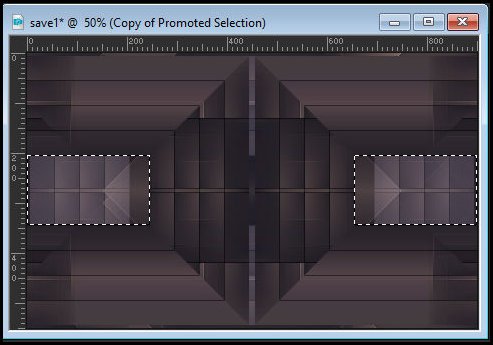
17
Drop Shadow: 0 0 85 50 black
Select none
18
Repeat the Drop Shadow with Blur: 5
20
Image - Add borders:
1px - background color
30px - white
1px - background color
21
Selections - Select all
Image - Add borders - 40px - white
22
Effects - Image Effects - Seamless Tiling
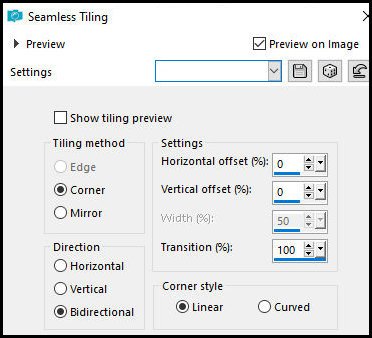
23
Selections - Promote selection to layer
Drop Shadow: 0 0 85 50 black
Select none
24
Activate the background layer
Effects - Plugins - Simple - Pizza Slice Mirror
Effects - Plugins - Simple - Top Left Mirror
Effects - plugins - Simple - Left Right Wrap
25
Activate the top layer
Copy [Text-Tsha]
Paste as new layer
Position according to the example
If you wish, you can change the color (the author used the
background color)
26
Drop Shadow: 0 5 100 0 black or another color of your choice
27
Copy your main tube
Paste as new layer
Position wherever you think looks best
Apply a Drop Shadow of your choice
28
Image - Add borders - 2px - background color
29
If you wish, you can add more text to your image
Add credits
Merge all
Save as JPEG

|