|
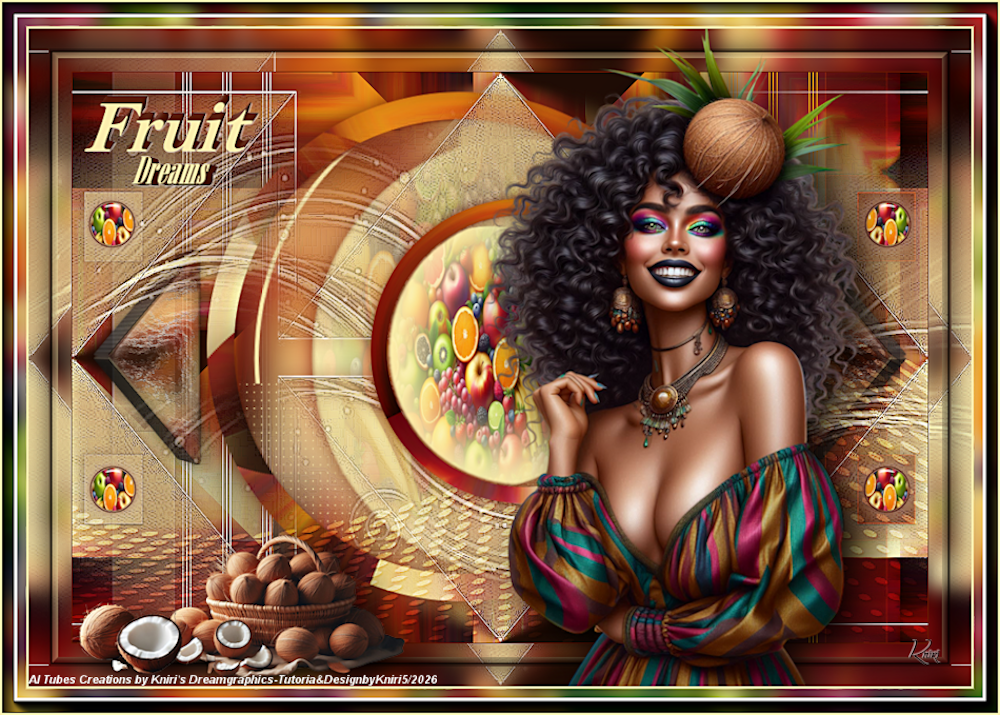
(imagem original de Kniri)
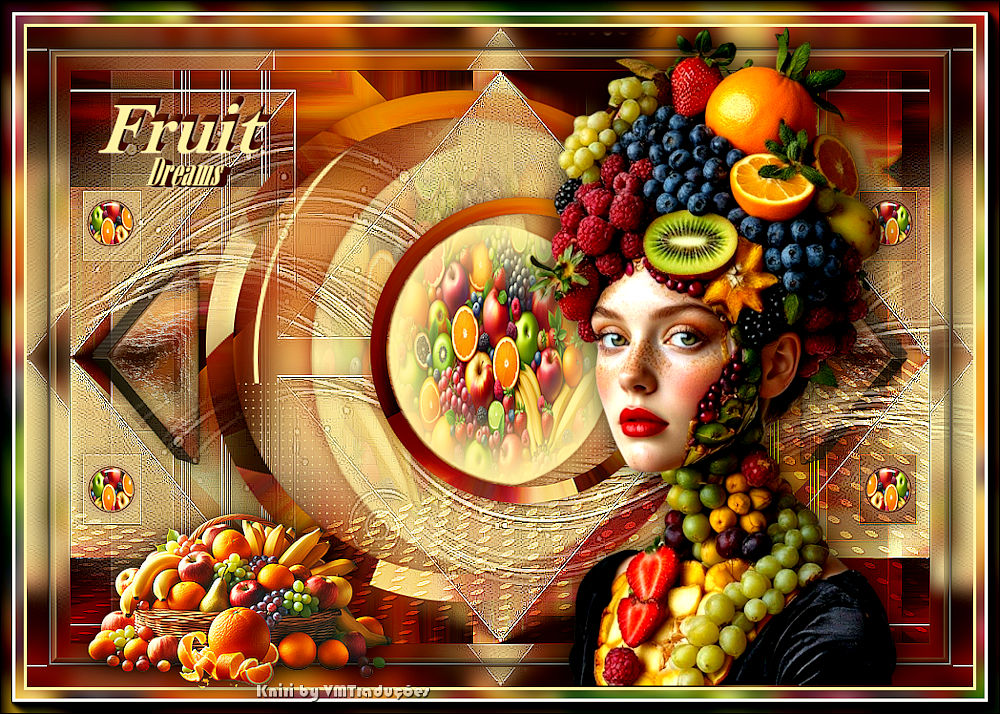
(minha versão)

This tutorial is from Kniri who I thank for
letting me translate their tutorials.

Original here

Tubes
Material

Plugins
Mehdi - Simple - Mura's Meister -
AAA Frames
You can find these plugins on the websites of:
Renée
Cloclo
You can also find this tutorial translated into these languages:
(Click on the flag)


|
Notes:
> Open the material / Duplicate (shift+d) / Close the originals
> Change the blend mode of the layers to match their colors.
> In older versions of PSP, Mirror Horizontal=Mirror / Mirror Vertical=Flip /
Pick tool=deformation
> Open the masks in psp and
minimize
>Adjust the size of the tubes according to your images
|
SCRIPT
Images:
1 female tube - 1 fruit-filled tube - fruit tube
*
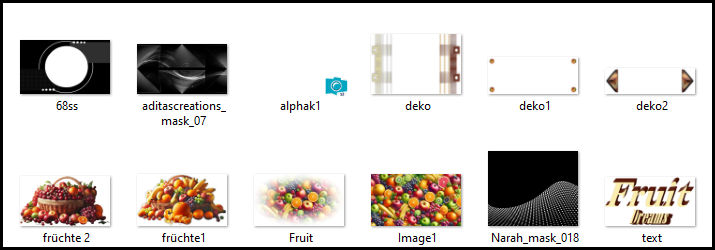
Material:
*
My images
*
#1
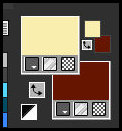
1. Colors: foreground - #faedae - background: #651701
2. Open alpha channel file [alphak1]
Duplicate (shift+d) / Close the original
Rename to Raster 1
3. Selections / Select all
4. Copy [image 1]
5. Paste into the selection
6. Select none
7. Effects / Image Effects / Seamless tiling - default
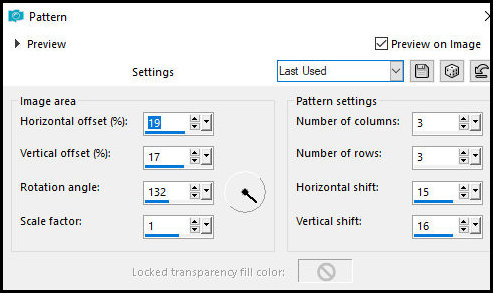
8. Effects / Reflection Effects / Pattern
print
#2
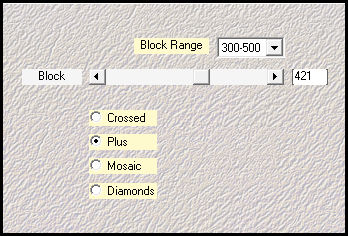
9. Effects / Plugins / Mehdi / Sorting Tiles
print
10. Effects / Plugins / Simple / Blintz
11. Repeat the Blintz
12. Effects / Image Effects / Seamless Tiling - default
#3
13. Layers / Duplicate
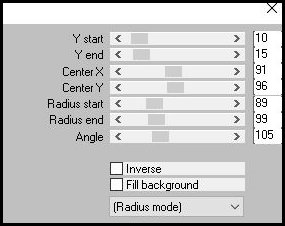
14. Effects / plugins/ Mura's meister / Pole Transform
print
15. Activate Raster 1 layer
16. Selections / Load selection from alpha channel / Selection kn1
17. Selections / Promote selection to layer
18. Adjust / Blur / Gaussian Blur: 20
19. Add new layer
20. Paint with color #faedae
21. Layers / New Mask Layer / From Image
22. Mask [68ss]
23. Merge group
24. Select none
#4
25. Selections / Load selection from alpha channel / Selection [kn2]
26. Add new layer
27. Copy [Fruit]
28. Paste into selection
29. Drop Shadow: 0 0 60 25,00 - background color
30. Select none
31. Activate top layer
32. Merge down - 3 times
33. Drop shadow same as before
34. Layers / Duplicate
35. Image / Resize: 60% - all layers unchecked
36. Image / Mirror / Mirror Horizontal
37. Add new layer
38. Paint with the foreground color
39. Layers / New Mask Layer / From image / Mask [aditascreations
mask 07]
40. Merge group
41. Layers / Arrange / Move down
42. Effects / Edge Effects / Enhance more
43. Drop shadow as before
#5
44. Layers / Duplicate
45. Merge down
45-1 The image will look like this
print
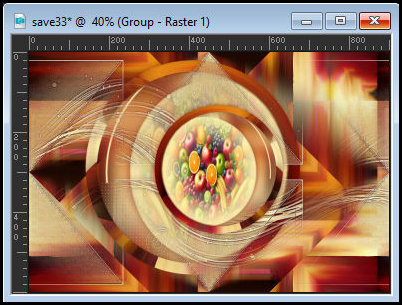
#6
46. Activate Raster 1 layer
47. Copy [Deko]
48. Paste as new layer
49. Adjust / Sharpness / Sharpen
50. Activate the top layer
51. Add new layer
52. Paint with the foreground color
53. Layers / New Mask layer / From image / Mask [Narah Mask 0183]
54. Layers/Duplicate
55. Merge group
56. Layers / Arrange / Move down
57. Blend Mode: Overlay / Opacity: 54%
58. Drop shadow: 1 1 60 1 background color
59. Effects / Edge Effects / Enhance
60. Activate the Pick Tool and set: X=0 Y=266 Press M
61. Copy [Deko1]
62. Paste as new layer
63. Activate the Promoted Selection layer
64. Copy [Deko2]
65. Paste as new layer
66. Opacity: 88%
67. Edit/Copy Special/Copy Merged
#7
68. Image / Add borders / 1px / background color
69. Selections / Select all
69-1. Image / Add borders / 45px / foreground color
70. Selections / Invert
71. Paste the image from memory into the selection
72. Adjust / Blur / Gaussian Blur: 10
73. Selection / Promote selection to layer
74. Paint with the foreground color
75. Layers / New Mask Layer / From Image / Mask [aditascretions mask
07]
76. Merge group
77. Effects / Edge Effects / Enhance
78. Selections / Select all
79. Image / Modify / Contract: 25px
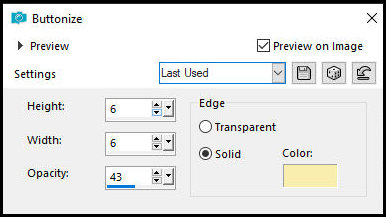
80. Effects / 3D Effects / Buttonize - foreground color
print
#8
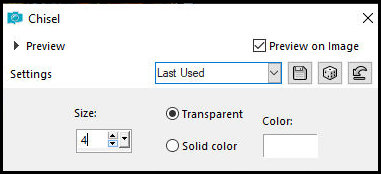
82. Effects / 3D Effects / Chisel
print
83. Drop Shadow: 0 0 80 40 black
84. Select none
85. Merge down
#9
86. Copy your main tube
87. Paste as New layer
88. Adjust the size
89. Position according to the model
90. Drop shadow of your choice
91. Copy [text]
92. Paste as a new layer
93. Move to the top left as per the model
#10
94. Image / Add border / 3px / foreground color
95. Selections / Select all
96. Copy [image1]
97. Image / Add border / 25px / background color
98. Selections / Invert
99. Paste into the selection
100. Adjust / Blur / Gaussian Blur: 10
#11
101. Effects / Plugins / AAA Frame / Photo Frame
print
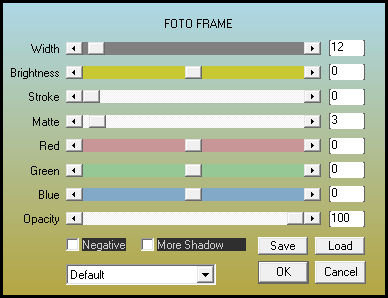
102. Repeat the Photo Frame
103. Select none
#12
104. Copy [früchte1] or [früchte2] or another of your choice
105. Paste as a new layer
106. Position Bottom left as per the model
107. Drop Shadow of your choice
108. Add credits
109. Image / Add borders / 1px / white
110. Adjust / Sharpness / Unsharp Mask [2 30 2 unchecked]
111. Image / Resize: 900px (width) - all layers checked
112. Save as jpeg

|