|
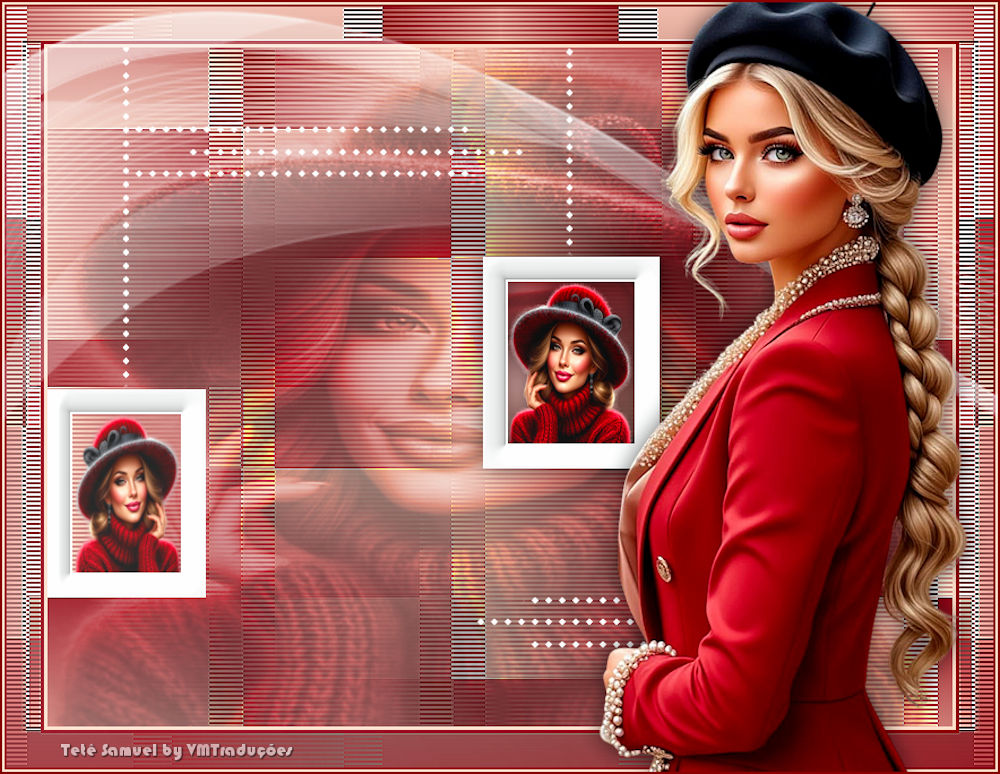

This tutorial is from Tetê Samuel who I thank for
letting me translate their tutorials.

Original here

Tubes

Material

Plugins
Neology - Simple - Distortion
Filters - Unlimited 2
You can find these plugins on the websites of:
Renée
Cloclo
You can also find this tutorial translated into these languages:
(Click on the flag)


|
Notes:
> Open the material / Duplicate (shift+d) / Close the originals
> Change the blend mode of the layers to match their colors.
> In older versions of PSP, Mirror Horizontal=Mirror / Mirror Vertical=Flip /
Pick tool=deformation
> Open the masks in psp and
minimize
>Adjust the size of the tubes according to your images
|
SCRIPT
Images:
1 tube face
1 female tube
*
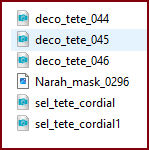
Material
*
My images
*
Save the selections in the PSP Selections folder
*
1.
Choose a dark color from your tubes
for the foreground and a light color for the background.
Prepare a linear gradient.
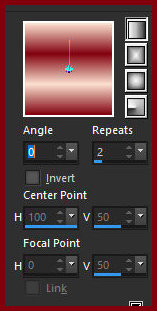
Open a new transparent image with
800x600px.
Paint with the gradient.
2.
Effects / Plugins / Neology / Blend
Mosaic [186]
Effects / plugins / Simple / Quick Tile
Effects / Plugins / Unlimited 2 / Distortion Filters / Scanline
Shifter [10 23]
Effects / Edges Effects / Enhance
3.
Selections / Load selection from
disk / Selection [sel-tete-cordial]
Add a new layer.
Paint with the color white.
Selections / Modify / Contract: 20
4.
Press Delete.
Selections / Invert.
Effects / 3D Effects / Inner Bevel
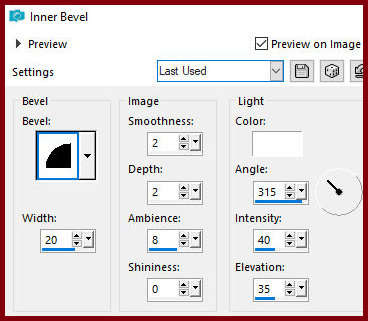
Selections / Invert
5.
Add a new layer
Paint with white color
Selections / Modify / Contract: 2
Press Delete
6.
Copy your tube face
Paste into the selection
Select none
Merge down
7.
Selections / Load selection from
disk / Selection [sel-tete-cordial]
Drop Shadow: 0 0 60 30,00 black
Select none
Selections / Load selection from disk / Selection [sel-tete-cordial1]
8.
Add a new layer
Paint with white color
Selections / Modify / Contract: 20
Press Delete
9.
Selections / invert
Effects / 3D Effects / inner Bevel - same as before
Selections / Invert
Add a new layer
10.
Paint with white color
Selections / Modify / Contract: 2
Press Delete
11.
Open your tube face.
Image / Mirror / Mirror Horizontal.
Copy and paste into the selection.
12.
Select none.
Merge down.
Copy the tube deco [deco-tete-044].
Paste as a new layer.
14.
Effects / Image Effects / Offset
[62/207].
Copy the tube [deco-tete-045].
Paste as a new layer.
Effects / Image Effects / offset [-330/150].
15.
Copy the tube [deco-tete-046].
Paste as a new layer.
Effects / Image Effects / Offset [-150/208].
Layers / Duplicate.
16.
Image / Mirror / Mirror vertical.
Image / Mirror / Mirror
Horizontal.
Activate the background layer.
Selections / Select all.
17.
Add a new layer.
Copy your tube face.
Paste into the selection.
Blend Mode: luminance/Opacity: 40%
18
Select none
Image / Add borders / 3px / background color
Image / Add borders / 3px / foreground color
Image / Add borders / 30 px / white
19
Select this 30px border with the Magic Wand (tolerance/feather=0)
Paint with the gradient (put the light color from the beginning on
the background)
Adjust/Blur Gaussian Blur: 30
Effects / Plugins / Neology / Blend Mosaic [186] - same as above
Effects / Plugins / Distortion Filters / Scanline Shifter [ 10/23] -
same as previous
20
Effects / Reflection Effects / Rotating Mirror - default
Effects / Edge Effects / Enhance
Select none
Image / Add borders / 2px / foreground color
21
Image / Add borders / 2px / color Background
Add new layer
Paint with white color
Layers / New Mask layer / From image / Mask [Narah-Mask-0296]
Merge group
22
Image / Mirror / Mirror Vertical
Opacity: 80%
Copy your main tube
Paste as a new layer
23
Adjust the size
Drop Shadow of your preference
Position as you prefer
Image / Add borders / 2 px / foreground color
24
Add the credits
Merge all
Save as jpeg

|