|
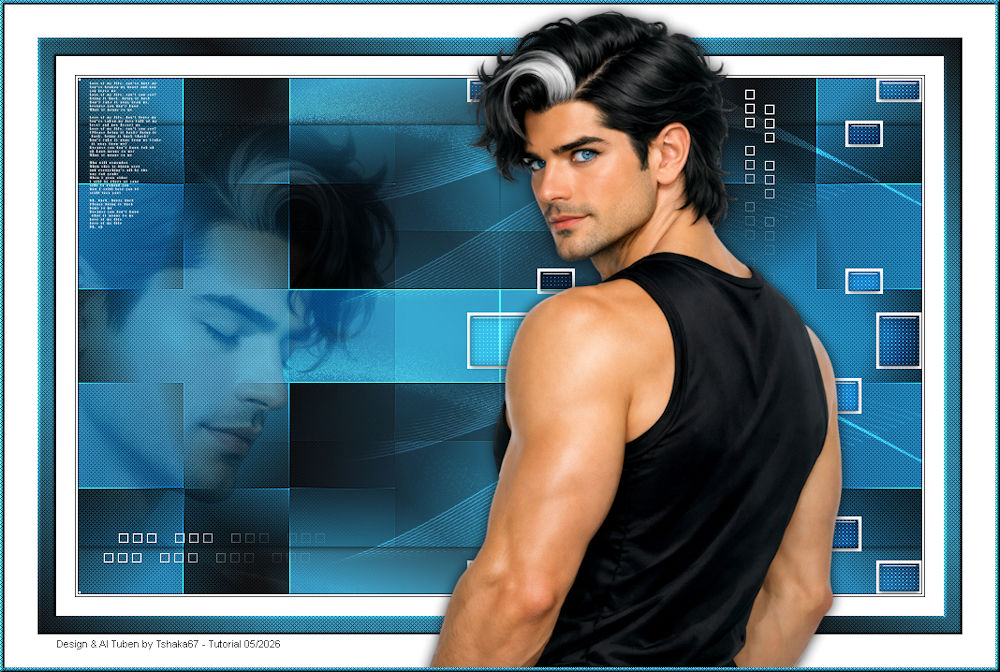
(imagem original tshaka)
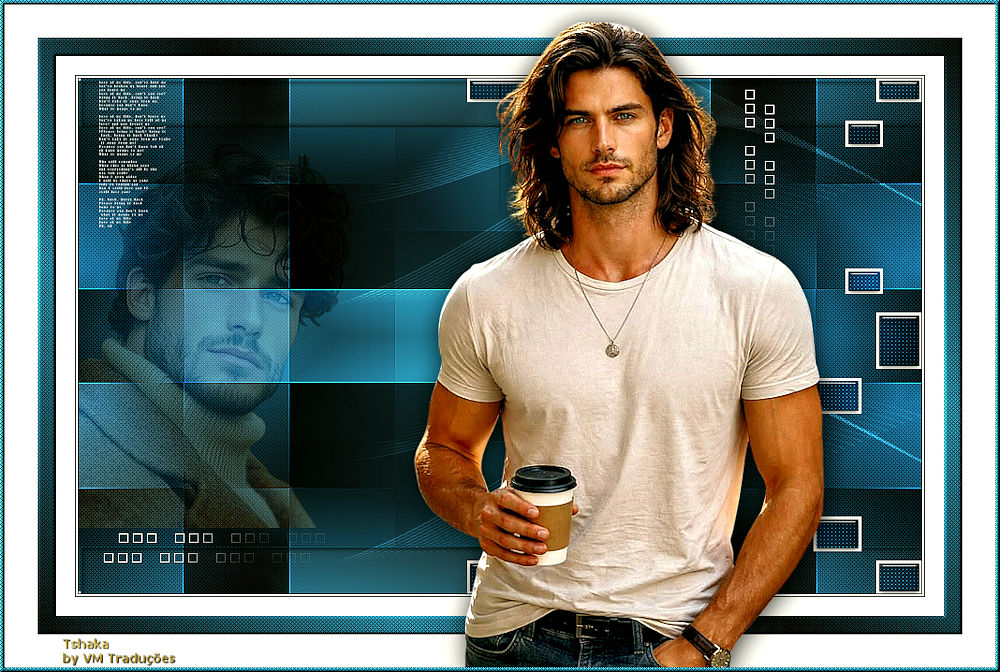
(minha versão)

This tutorial is from Tshakas who I thank for
letting me translate their tutorials.

Original here

Tubes

Material

Plugins
Mehdi - Simple - AP [Lines] -
Toadies - Eye Candy 5: Impact
You can find these plugins on the websites of:
Renée
Cloclo
You can also find this tutorial translated into these languages:
(Click on the flag)


|
Notes:
> Open the material / Duplicate (shift+d) / Close the originals
> Change the blend mode of the layers to match their colors.
> In older versions of PSP, Mirror Horizontal=Mirror / Mirror Vertical=Flip /
Pick tool=deformation
> Open the masks in psp and
minimize
>Adjust the size of the tubes according to your images
|
SCRIPT
Images:
1 male tube
1 male face tube
**
Material
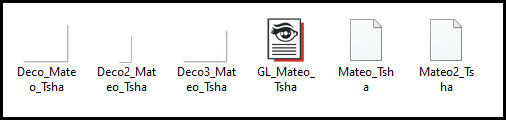
**
My images
**
Double-click the [GL Mateo Tsha] preset to install it in the plugin
Place the [Mateo tsha/Mateo2 Tsha] selections in the PSP Selections
folder
**
01. Open your tubes and decorative
tubes in PSP
02. Choose a not-too-light color for the foreground and a dark color
for the background
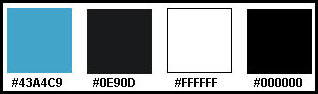
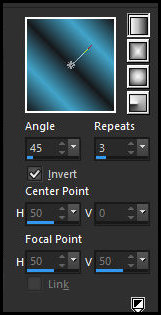
03. Prepare this gradient
04. Open a new transparent image with 900x550px
05. Paint with the gradient
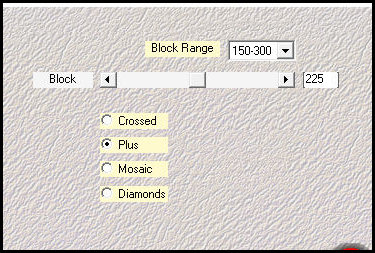
06. Effects / Plugins / Mehdi / Sorting Tiles
07. Effects / Edge Effects / Enhance
08. Effects / Plugins / Simple / Top Left Mirror
09. Layers / Duplicate
10. Effects / Plugins / Simple / Half Wrap
11. Activate the selection tool (mode rectangle)
12. Select the top and bottom parts as shown print
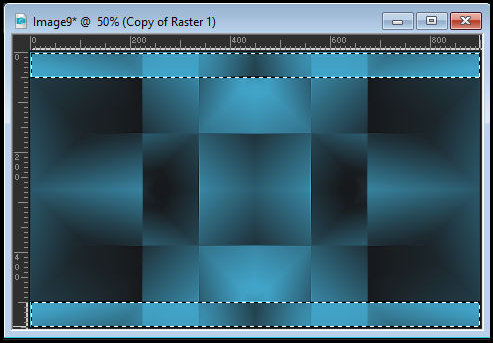
13. Press Delete
14. Selections/Invert
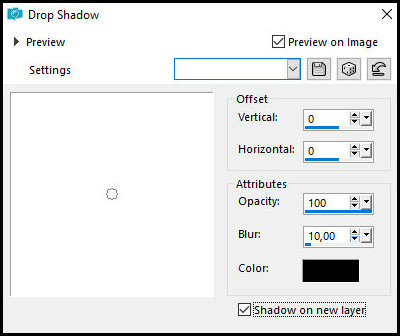
15. Drop Shadow: 0 0 100 10.00 black - SHADOW ON NEW LAYER MARKED
16. Select none
17. Activate the Copy of Raster 1 layer
18. blend Mode: Soft Light / Opacity: 45%
19. Merge visible
20. Layers/Duplicate
21. Selections / Load selection from disk / Selection [Mateo-Tsha]
22. Press Delete
23. Select none
24. Effects / Plugins / AP [Lines] / Silver Lining
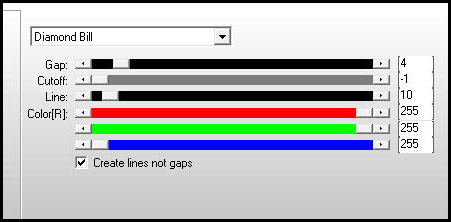
25.Layers/Duplicate
26.Image/Mirror/MIrror Horizontal
27.Merge down
28.Blend Mode: Multiply
29.Copy [Deco Mateo Tsha]
29-1 Paste as new layer
30.Objects/Align/Right
31.Blend Mode: Overlay
32.Layers/Duplicate
33.Image/Mirror/Mirror Horizontal
34.Effects / Plugins / Toadies / Blur 'em! - default [14 12]
35. Blend Mode: Overlay / Opacity: 65%
36. Rename this layer as [BLUR]
37. Activate the background layer - Merged
38. Selections / Load selection from disk / Selection [Mateo2 Tsha]
39. Selections / Promote selection to layer
40. Layers / Arrange / Bring to top
41. Add a new layer
42. Paint the selection white
43. Selections / Modify / Contract: 3
44. Press Delete
45. Effects / Plugins / Eye Candy 5: Impact / Glass - Preset [GL
Mateo Tsha]
46. Select none
47. Activate the promoted selection layer (second from the top)
48. Effects / Plugins / AP [Lines] / SilverLining - preset [dotty
grid] and select the [Maxed] option from the list (if (If the Maxed
option is not appearing, click Blend until it appears in the list)
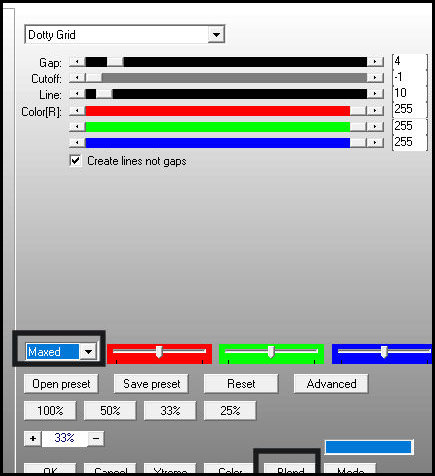
49. Blend Mode: Overlay
50. Activate the top layer
51. Copy your tube misted face and paste it as a new layer
52. Position it to the left as per the model
53. Blend Mode: Soft Light
54. Selections / Select all
55. Selections / Float - Selections / Defloat
56. Activate the [Blur] layer and Delete
57. Erase any trace of images overlapping the face
58. Select none
59. Activate the top layer
60. Copy [Deco2 Mateo Tsha] and paste it as a new layer
61. Position it at the top left (see the model)
62. Copy [Deco3 Mateo Tsha] and paste it as a new layer
63. Effects / Image Effects / Offset [-65/0]
64. Image / Add borders 1px / color of background
65. Image / Add borders 2px / white
66. Image / Add borders 1px / background color
67. Image / Add borders 20px / white
68. Selections / Select all
69. Image / Add borders 20px / white
70. Selections / Invert
71. Paint the selection with the initial gradient
72. Effects / Plugins / AP[Lines] / SilverLining
(first, click Reset and browse the list until the [blend option]
appears, then configure as shown in the screenshot)
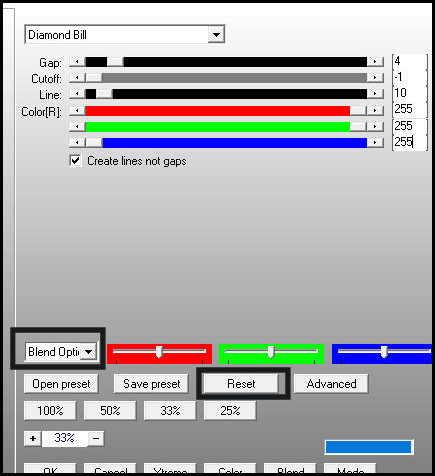
73. Effects / 3D Effects / Inner Bevel
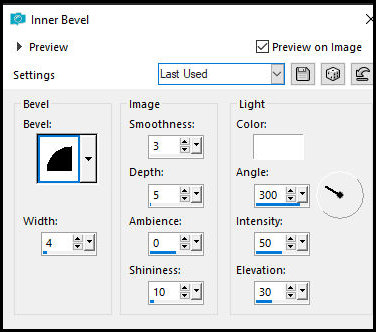
74. Select none
75. Image / add borders / 40px / white
76. Copy your main tube and paste it as a new layer
77. Position it where you think is best
78. Drop shadow of your choice
79. Add a new layer
80. Paint the layer with the color from the foreground
81. Selections / Select all
82.Selections/Modify/Contract: 5
83.Press Delete
84.Selections / Invert
85.Effects / Plugins / AP [Lines] /SilverLining - same as above
86.Effects / 3D Effects / Inner Bevel - same as above
87.Select none
88. Put credits
89. Merge all
90. Save as jpeg

|